✎
DesktopDraw
Draw directly on your screen in Windows.
DesktopDraw is a screen annotation tool that turns your Windows desktop into an interactive canvas. Draw, highlight, point and explain anything during presentations, meetings, classes or live streams.
▱
Windows
▷
YouTube
▰
Zoom
▢
Discord
♧
Teams
•••
y más...
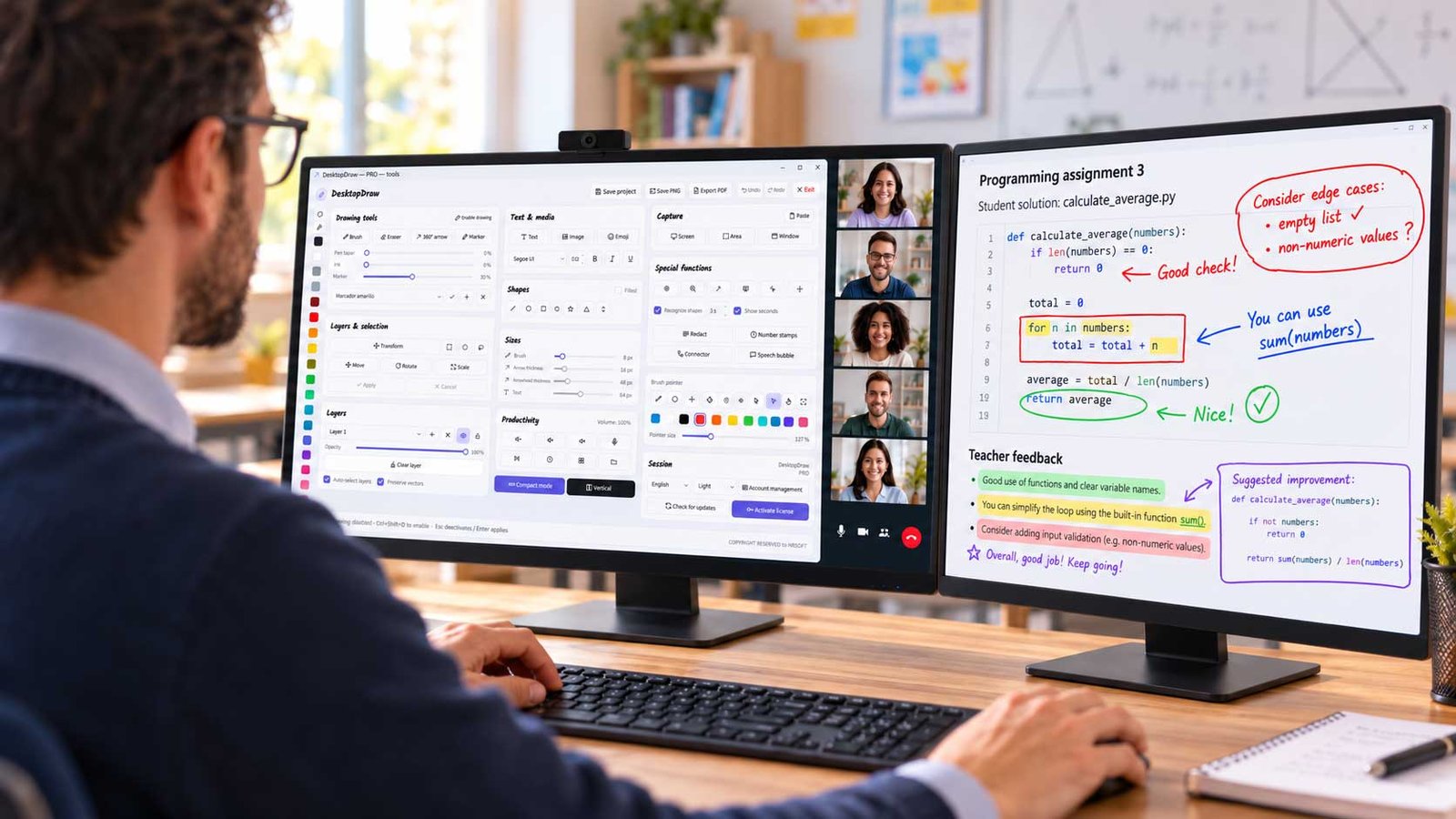


Stop explaining with your mouse pointer.
Lightweight & Fast
Ready in seconds
Complete Toolkit
Complete and easy to use
Layers
Organize your ideas
Capture
Save and share
Always on Top
Over any application
Fully Customizable
Make it your own
Made for every kind of presentation.
Online Meetings
Explain ideas clearly during Zoom, Teams or Google Meet calls.
Teachers
Annotate presentations, websites and learning materials.
YouTube Creators
Explain details while recording tutorials.
Live Streamers
Highlight information during live broadcasts.
Software Demonstrations
Point directly to buttons, menus and workflows.
Corporate Presentations
Make reports and dashboards easier to understand.
Remote Support
Guide users visually through technical problems.
Designers & Developers
Discuss interfaces and prototypes directly on screen.
Built to stay out of your way.
Lightweight, fast and distraction-free — exactly what a presentation tool should be.
Fast startup
Low resource usage
Minimal interface
No complicated setup
Designed for Windows
No unnecessary distractions
Everything one click away.
Every tool lives in one compact panel. Switch pens, shapes, layers, spotlight or magnifier with a single click, or assign your own hotkeys and never break the flow of your presentation.
No complications. All for €2.49* a month or €16* a year, cancel anytime.
*VAT not included — calculated at checkout.
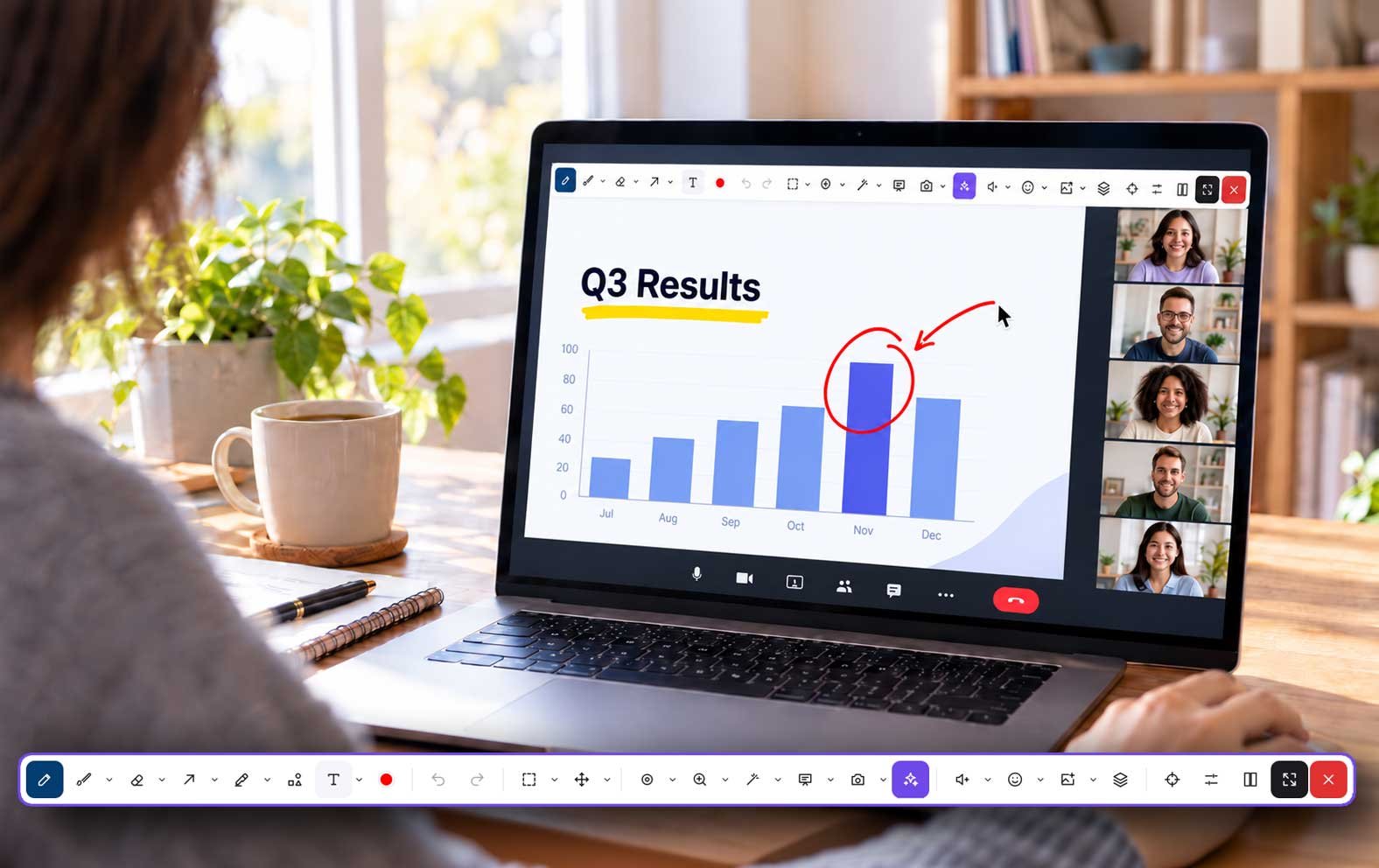
Everything you need to explain
visually.
A complete annotation toolkit that stays out of your way.
Drawing & Shapes
Freehand Pen
Draw freely over anything on your screen with smooth, natural strokes.
Highlighter
Highlight text, images and interface elements without covering them.
Progressive Pen
Give freehand strokes a smooth, tapered finish with an adjustable pen effect.
Arrow Tool
Direct your audience’s attention to the details that matter.
Straight Lines
Create clean connections between ideas and objects.
Rectangle Tool
Frame important areas with precise rectangles and squares.
Ellipse / Circle
Outline objects and highlight sections with rounded shapes.
More Shapes and Fills
Add triangles, stars, speech bubbles and other shapes, with fill options.
Text Tool
Type right where you click with a format bar for font, size, bold, italic, underline and quick colours. One click moves a text; a double-click edits it.
Shape Recognition
Turn held freehand strokes into lines, ellipses, stars and polygons up to 12 sides.
Recognition Countdown
Set the recognition delay and optionally show a countdown beside the cursor.
Colors & Style
Color Selector
Choose a custom color or switch quickly between palette swatches.
Line Thickness
Adjust pen, marker and line width to suit each explanation.
Transparency
Control drawing and layer opacity for subtle or bold annotations.
Drawing Presets
Create, apply and delete favorite combinations of tools, colors and sizes.
Edit & Transform
Eraser
Remove unwanted annotations as you refine your explanation.
Clear Active Layer
Clear the selected layer in one click; the red Master Delete beside it removes every layer and element, after a warning.
Undo / Redo
Step backward or forward through your editing history.
Selection Tools
Select areas with rectangle, circle or freehand lasso selection.
Move
Reposition selected content with a dedicated movement control.
Rotate
Turn selected content and use Shift for stepped rotation.
Scale
Resize drawings and images, with proportional scaling when needed.
Alignment Helpers
Use alignment guides and Shift-assisted transformations for precise placement.
Layers & Screen Overlay
Screen Overlay
Annotate over your Windows applications without switching away from them.
Mouse / Drawing Mode
Switch between controlling your computer and drawing over the screen.
Layer Management
Organize drawings and images in separate layers and groups, and merge a layer into the one below.
Show / Hide Layers
Temporarily hide drawing layers and bring them back when needed.
Layer Lock
Lock or unlock a layer to protect it while editing other elements.
Whiteboards, Projects & Export
White & Black Boards
Create a white, black or blue board on the monitor you choose.
Board Size and Position
Choose the initial board size, then move or scale it together with its drawings.
Technical Grid
Show a configurable grid on your board to guide diagrams and layouts.
Whiteboard Pages
Add, duplicate and switch between pages while preserving your work.
Save / Open Projects
Keep layers, images and page settings in a project you can continue later.
Screenshots
Capture a screen, an area or a window for your explanation.
Paste Images
Paste clipboard images into a new layer and transform them on the canvas.
PNG Export
Export visible drawing layers for one monitor or all screens, with transparency.
Presentation Tools
Spotlight
Dim the surroundings and focus attention with an adjustable light mask. A colored ring and on-screen controls let you move and resize it.
Magnifier
Enlarge small details with adjustable zoom and lens size, plus on-screen controls to move, zoom and resize the lens.
Laser Dot
Point to important details using the color selected in your palette.
Laser Trail
Draw a temporary laser trail with adjustable thickness and fade time.
Click Highlights
Make left and right clicks visible with adjustable rings, colors and duration.
Presentation Toolbar
Keep key tools in a movable, collapsible floating toolbar while presenting.
Presentation Timer
Set a countdown, play or pause it, reset it and optionally show it on screen.
Customization & System
Custom Hotkeys
Assign shortcuts to your tools, search any function by name or key, and spot duplicate or conflicting combinations.
Multi-monitor Support
Work across monitors and choose the screen for your board or PNG export.
Flexible Layouts
Switch between horizontal, vertical and compact layouts with adaptive panels.
Themes and Languages
Personalize the interface with ten color themes and multiple languages.
Windows and Audio
Control volume, mute, microphone and playback, with Start and Explorer shortcuts.
Monthly or annual.
Everything included.
All tools and all updates for €2.49* a month,
or €16* a year and save 46%. Cancel anytime.
Monthly License
€2.49*
EUR per month
Cancel anytime
*VAT not included — calculated at checkout for your country.
✓ All drawing tools
✓ All functions
✓ 1 PC device with a transferable license
✓ All updates while subscribed
Annual License
€16*
SAVE 46% Annually
EUR per year (just €1.33 a month) · Cancel anytime
*VAT not included — calculated at checkout for your country.
✓ All drawing tools
✓ All functions
✓ 1 PC device with a transferable license
✓ All updates while subscribed
Windows PC · Works over Zoom, Teams, Google Meet, OBS, PowerPoint and any app
One subscription.
Every DesktopDraw tool.
Simple from the first click
1
Subscribe
2
Receive your license
3
Activate DesktopDraw
4
Enjoy full access
Your license stays the same while your subscription remains associated with your account. Full access continues while your subscription is active.
✓ Regular updates
✓ Instant activation
✓ Cancel anytime
Frequently asked questions
Your ideas deserve
to be seen.
Draw. Explain. Connect.